Convert HEIC to GIF when a website, older application or image workflow specifically needs a GIF file. Choose a photo, set its dimensions and color palette, then preview the result before downloading it. Processing takes place in your browser, and your original HEIC file stays unchanged.
Each supported photo becomes one still GIF. This tool does not make a photograph move, recover a Live Photo video or combine a selection into an animation. That distinction matters: GIF can contain animation, but a static source does not supply motion on its own.
Choose HEIC files
Add HEIC or HEIF photos, or a ZIP containing them. Review the file limits beside the selector before adding a large collection.
What changes when you convert HEIC to GIF?
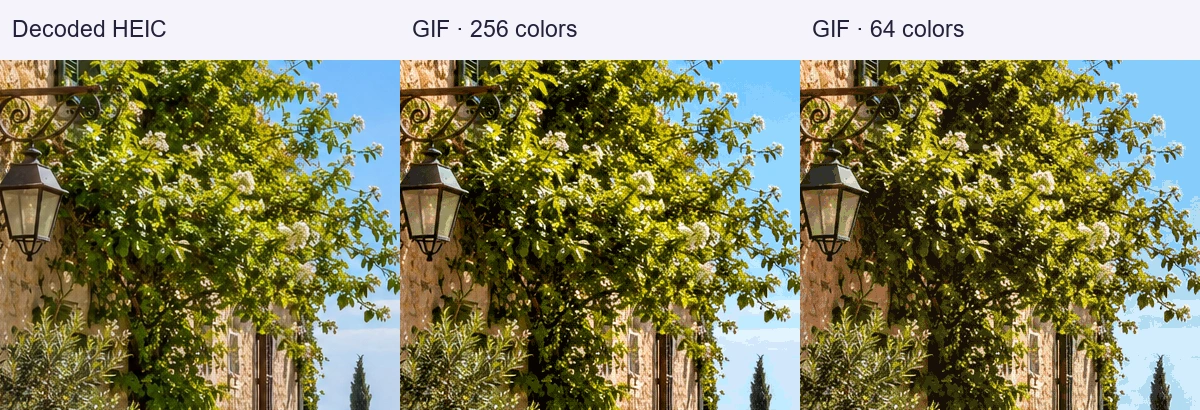
A typical photograph contains many subtle colors. A GIF image uses a limited palette: up to 256 color entries for an image frame. During HEIC to GIF conversion, similar colors are mapped to a smaller selection. Fine gradients, soft shadows and areas of skin may therefore look less smooth.
This does not mean that the conversion has failed. It is a consequence of choosing GIF for a photographic image. Start with the 256-color setting and compare an area with gradual color changes. A 64-color result can be useful for a simple graphic, but it is less likely to suit a detailed photograph.
The file may also become larger than the original HEIC. HEIC is designed to store photographic content efficiently, while GIF works particularly well with limited-color graphics. Changing the format is not a promise of reducing the file size.
Make sure GIF is the format you need
| Your destination or task | Format to consider | Reason |
|---|---|---|
| An upload field explicitly requires GIF | GIF | Meets that file-format requirement |
| An ordinary photo attachment | JPG | Better suited to photographic color and broad compatibility |
| A still graphic with smooth transparency | PNG | Can retain partial transparency rather than a GIF-style transparent index |
| A moving sequence or short clip | A supported animation or video workflow | Requires multiple frames or a video source |
Use HEIC to GIF conversion for a real format requirement, not because GIF is automatically better. If the destination also accepts a photographic format, you may get a more faithful result with our main converter. For a still image that needs a full-color output, consider the PNG option.
How to convert HEIC to GIF
1. Add the photographs you want to convert
Choose files from your device or drag them into the tool. You can add several images, but each one is processed separately. A ZIP is a convenient way to select a collection; it is not treated as an animation timeline.
The tool checks the file contents as well as the extension. A renamed image, incomplete download or unsupported multi-image container will receive an error instead of a misleading success message.
2. Set practical output dimensions
The default maximum width and height are 1600 pixels. Your photo keeps its proportions and is not enlarged. For an avatar or a small help-desk attachment, a smaller dimension may be enough. There is little benefit in exporting a huge GIF that the destination will display as a small thumbnail.
You can clear the dimension fields to request the original size, provided the output remains within the tool's processing limits. If the image exceeds those limits, choose smaller dimensions rather than assuming that a small compressed source requires little memory.
3. Choose a color palette
Start with 256 colors for a photograph. Try 128 or 64 only if a simpler palette is acceptable. This setting controls the color selection used by the GIF; it is not the same as a JPEG quality percentage.
If your source includes transparency, choose the color used to fill transparent areas. This version produces a solid-background GIF. Changing that fill color does not remove a wall, sky or other visible background from the photograph.
4. Preview and download
Select Convert to GIF and compare the result with the decoded source preview. Check small text, edges and gradients, not just the overall thumbnail. Download a finished GIF individually, or collect completed results in one ZIP. A failed file does not prevent you from saving the successful ones.
Where a still GIF can be useful
Some older publishing systems have a short list of allowed image formats. A static GIF can be a practical compatibility copy when those requirements are outside your control. Check the system's maximum dimensions and file-size limit before converting a whole folder.
GIF may also be useful for a deliberately reduced-color reference image, such as a small illustrated marker photographed on a phone. In that case, the change in appearance may be acceptable because the image's purpose is simple identification rather than detailed reproduction.
For instructions or technical documentation, inspect lettering carefully. Palette reduction can merge neighboring shades and make thin marks harder to distinguish. If the GIF is too difficult to read, use a larger output or ask whether the destination accepts another format.
A still photo is not an animated source
Searching for a HEIC to GIF converter sometimes means wanting to turn an iPhone Live Photo into a moving GIF. This page does not provide that operation. A Live Photo workflow includes motion information that is not recovered by converting its separate still photograph.
Similarly, selecting several unrelated HEIC files here produces several still GIFs. It does not invent transitions or choose a playback order. Keep the original motion asset if animation is your goal, and use a tool that explicitly supports that source and a frame-based export.
The converter also rejects unsupported image sequences and multi-image containers. It does not silently discard additional images while presenting the result as a complete conversion.
Check the result before replacing anything
Keep the original HEIC as your source. The GIF is a compatibility copy with a restricted palette, not a replacement archive for every detail of the photograph. Camera metadata, depth information and other container features are not preserved by this export.
Check the downloaded file in the application that requested it. Opening successfully in a browser confirms one part of compatibility, but the destination may impose its own limits on dimensions or file size. Read those limits literally: a ZIP containing a GIF is not the same as submitting the GIF itself.
HEIC to GIF questions
Will my GIF move?
No. This HEIC to GIF tool creates one static image per supported photo. Movement requires an animation sequence or video input, neither of which is created from a single still photograph here.
Why does the result have visible bands of color?
The GIF palette contains fewer colors than a typical photo. Smooth transitions may be represented by several distinct shades. Try 256 colors and inspect the result; if the effect is unacceptable, a full-color still format is a better choice.
Why is the GIF larger than the HEIC?
Different formats compress different image content efficiently. A detailed photograph can produce a large GIF even after its colors are reduced. Smaller dimensions may help, but no setting guarantees a smaller file than the original.
Does a GIF preserve photo metadata?
This export is intended for the visible image, not for preserving camera or location records. Keep the original if those records matter, and do not use the converted file as your only archival copy.
Are files sent to a conversion server?
The conversion runs on your device. The page loads its software through normal web requests, but your selected image data is not submitted to a conversion server. Reloading the page may require selecting the files again.
Can I rename .heic to .gif instead?
No. The extension is only a filename label. HEIC to GIF conversion must decode the photograph and write valid GIF image data, which is what the conversion step does.