Convert HEIC to TIFF for an image workflow that specifically requests a TIFF file. Select your photos, keep their dimensions or set a smaller size, then download an uncompressed still-image copy. Your original HEIC files are not overwritten.
This converter creates an 8-bit-per-channel, standard-dynamic-range TIFF. It does not turn a processed photo into camera RAW, recover missing detail or preserve every feature inside the original HEIC container. Those limits are important when a printer, editor or archive has a particular delivery specification.
Choose HEIC files
Add supported HEIC or HEIF still photos. Each image becomes a separate TIFF. Check the displayed limits before selecting a large group: an uncompressed output can be much larger than its source.
When HEIC to TIFF is the right conversion
TIFF is often used to exchange raster images between desktop editing, publishing and document-production applications. If someone has asked you for a TIFF, the practical goal is usually to provide an image their workflow can open and process, rather than to make the photo smaller.
Ask for the complete requirement when the destination is a professional print or archive system. “TIFF” alone does not specify color space, bit depth, compression, pixel dimensions or whether layers are expected. A valid TIFF can still be unsuitable for a workflow with more specific rules.
This HEIC to TIFF converter is intended for straightforward still-image exchange. It provides a flattened, 8-bit-per-channel result, with no extra photographic compression applied when the decoded pixels are written into the uncompressed TIFF.
TIFF, PNG or JPG: choose for the destination
| Requirement | Useful choice | Tradeoff |
|---|---|---|
| The receiving application explicitly requests TIFF | TIFF | Broad desktop imaging use, but potentially large files |
| A full-color still image for a website or ordinary browser preview | PNG | Convenient web display; not a substitute for a required TIFF specification |
| A compact photographic attachment | JPG | Smaller files are often practical, but saving uses lossy compression |
| Original camera information and future editing flexibility | Keep the original source as well | A converted compatibility copy is not a complete replacement archive |
Use a format because it meets the destination's needs, not because its extension sounds more professional. If the image is simply going into a web form, our PNG converter or standard photo converter may be a more convenient choice.
How to convert HEIC to TIFF
Add your original photos
Select HEIC or HEIF files from your device, drag them into the tool, or choose a ZIP containing them. Start with one representative photograph if you are preparing a large delivery. That lets you check the result in the receiving application before converting everything.
An incomplete download, a file with a misleading extension or an unsupported image sequence receives an error. The tool does not silently extract one picture from an unsupported multi-image container and call it a complete conversion.
Choose dimensions only when needed
Leave the maximum width and height blank to request the original decoded dimensions within the supported limits. Enter a smaller maximum when the destination needs a reduced-size copy. Proportions are retained, and a small picture is not enlarged to fill the requested bounds.
Reducing dimensions discards pixels. If a printer has asked for a minimum pixel size, check that requirement before resizing. A lower file size is not useful if the photograph no longer contains enough pixels for the intended print.
Set the resolution tag and filename extension
The resolution setting records how many image pixels correspond to an inch when an application uses that tag for print sizing. It does not create additional pixels. Choose the value requested by the recipient, or leave the default if you have no special print requirement.
Both .tif and .tiff are used for TIFF files. Choose the extension your workflow expects; the underlying format is the same. Transparent areas, if present in the decoded source, are filled with the selected background color.
Convert, inspect and download
Select Convert to TIFF. Inspect the preview, dimensions and actual output size, then download a file individually or collect completed results in a ZIP. Open a downloaded TIFF in the application that will use it before replacing any working copies.
What “uncompressed” means here
The converter decodes the HEIC photo and writes the resulting raster into an uncompressed TIFF. It does not apply another JPEG-style quality setting at the TIFF-writing stage. That avoids a new lossy image-compression step during this final export.
It does not mean that the entire process is a bit-for-bit preservation of the source. The original may already contain compressed image data, and its color or bit-depth features may exceed this browser-based output pipeline. Decoding and rendering can change how those features are represented.
For that reason, keep the original HEIC. Treat the TIFF as a compatible working copy, not proof that every original property has been retained. If your workflow requires verified HDR, a particular embedded profile or higher bit depth, use an application and export path that explicitly support those requirements.
Pixels, print size and the resolution tag
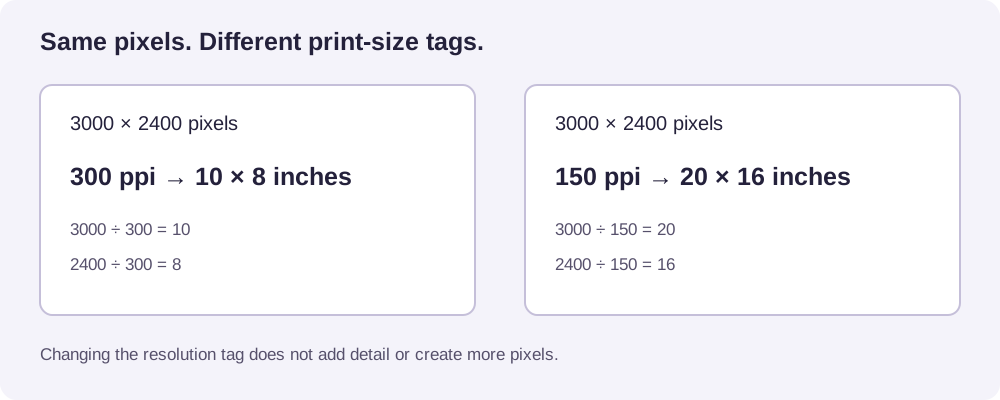
Pixel dimensions describe the amount of image data available. A resolution tag describes one way to map that data onto a physical page. These are related, but changing the tag does not change the pixel count.
For example, a 3000 × 2400 pixel photograph corresponds to 10 × 8 inches at 300 pixels per inch. At 150 pixels per inch, the same pixels correspond to 20 × 16 inches. The larger interpretation does not contain twice the photographic detail; it spreads the same image over a larger area.
Before sending a HEIC to TIFF export for printing, check three things together: the requested physical size, the available pixel dimensions and the receiving application's resolution requirements. Do not judge print suitability from the file extension or resolution number alone.
Expect larger files and allow time to save them
A HEIC can store a detailed photograph in a relatively compact file. An uncompressed TIFF represents the rendered pixels without that storage advantage, so its size may increase substantially. The tool shows the actual output size rather than presenting every conversion as a saving.
Large images also require working memory during decoding and export. If a mobile browser cannot complete the task, reduce the selection or use a computer with more available resources. Download completed files before reloading the page, because the tool is not a permanent file-storage service.
HEIC to TIFF questions
Does this produce a 16-bit TIFF?
No. This HEIC to TIFF tool produces 8-bit-per-channel output. The TIFF format can support other image representations, but that does not mean every TIFF converter produces them.
Will converting improve the quality of my photograph?
No. Conversion changes the file representation for compatibility. It cannot recreate detail that was never captured or was lost earlier. Keep the original and assess the downloaded copy at the size you intend to use.
Are TIFF and TIF different formats?
No. They are two common filename extensions for the same format. Some older workflows prefer the shorter extension, so follow the recipient's naming requirement when one is specified.
Does the result retain layers, depth data or camera metadata?
No. This export contains a flattened still image. Do not rely on it to preserve layers, auxiliary images, location information or the full camera metadata of the HEIC source.
Can I merge several photographs into one multipage TIFF?
This converter produces one TIFF per photograph. A ZIP groups those files for downloading but does not turn them into a multipage TIFF. If you need a combined document, consider our PDF tool instead.
Are photos uploaded for conversion?
The image processing runs in your browser. Website code still loads over the network, but selected photo data is not sent to a conversion server. Your source files remain unchanged on your device.