Turn HEIC photos into an MP4 that holds each picture on screen for the time you choose. Make a clip from one photo or arrange several photographs into a slideshow, then preview the video before downloading.
This HEIC to MP4 converter works with still pictures. It does not recover a Live Photo’s missing video, make a person move, or extract sound from an image. The output is a silent photo clip or slideshow, created locally on your device.
Choose HEIC photos
Set the order, timing, and video frame. Your original photographs are not changed.
First, identify what you want to turn into a video
“HEIC to MP4” can describe several different intentions. A photograph may need a few seconds on a video timeline. A set of pictures may need to play in order. Or a Live Photo may have lost its motion after only the still component was copied. These situations need different inputs.
| What you have | What this converter can make | What it cannot supply |
|---|---|---|
| One still HEIC | A video holding that picture for a chosen duration | Movement that was never included in the image |
| Several still HEIC photos | An ordered slideshow with a set time per picture | Recorded action between the photographs |
| A still HEIC copied from a Live Photo | A still-photo clip | The missing original video or audio component |
| An existing MOV recording | Not an input for this tool | Video transcoding from a still-image upload |
If you want the original motion, return to the complete Live Photo in your photo library. If you want a photograph to occupy time in a video, the HEIC to MP4 workflow below is the appropriate one.
Arrange the photos before you encode
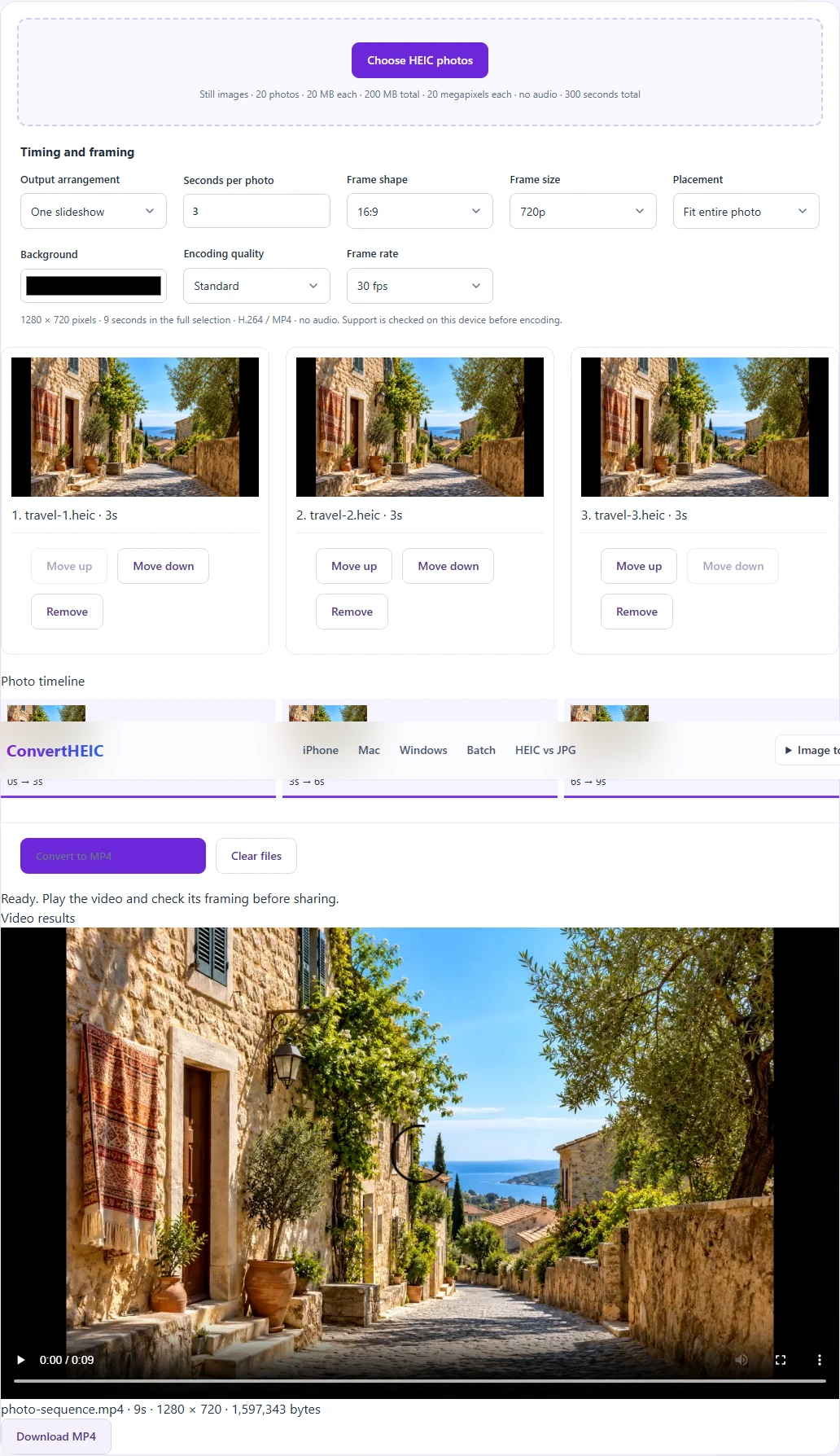
Add your HEIC or HEIF pictures and check the thumbnails. Choose One slideshow to create a single video, or Separate clip for each photo when each image needs its own downloadable file. The second option is useful when you will arrange the clips later in an editor.
For a slideshow, move the photographs into the order you want them to appear. You can use the move controls rather than relying on drag and drop. Remove unwanted pictures before converting; a file’s position in the list determines its place in the finished sequence.
Set Seconds per photo and check the total duration. Three pictures held for three seconds each create a nine-second sequence. The converter uses direct cuts between pictures, without adding transitions, zoom effects, a soundtrack, or artificial movement. That makes the timing straightforward and leaves creative editing to the application where you need it.
How to convert HEIC to MP4
Choose the source photos
Select the still HEIC images saved on your device. The tool checks the file contents, not only the filename extension. If a file contains an unsupported multi-image structure, it is reported rather than silently reduced to an arbitrary first frame.
Choose timing and a frame shape
Decide whether you need a landscape, portrait, or square video. Choose a frame size suited to the destination, then set the time each photo remains visible. A larger frame is not automatically better: it can increase processing work without adding detail to a small source image.
Review how every picture fits
Use the frame preview to inspect portrait and landscape photos together. Check that important people, signs, or objects remain visible. A slideshow needs one consistent video frame, even when the original photographs have different proportions.
Create and play the video
Select Convert to MP4 and keep the page open while it processes the sequence. Once the result is ready, play it from beginning to end. Check the order, duration, framing, and any visible orientation problems before downloading. Separate clips can be collected in a ZIP for transfer.
Fit or fill: decide what stays visible
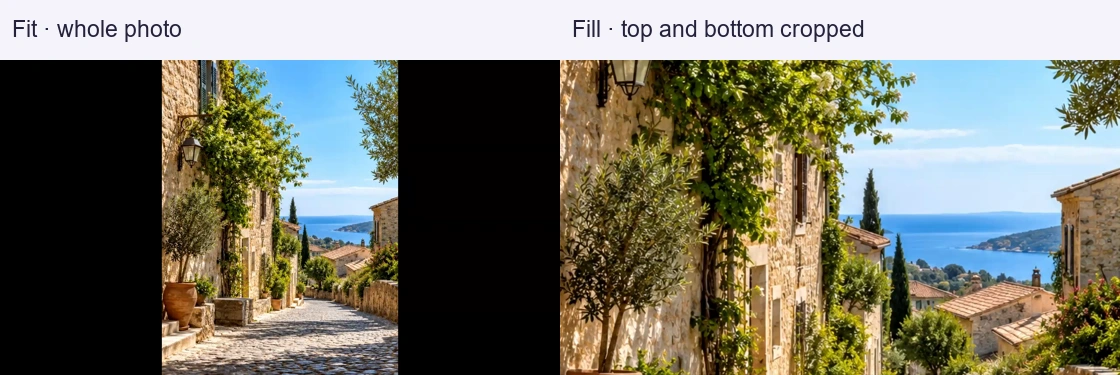
Fit entire photo keeps the whole image inside the video frame. When the proportions differ, the remaining space uses your chosen background color. This is a useful default for group photographs, diagrams, or any picture whose edges matter.
Fill frame covers the video frame by cropping the image. It avoids borders, but some content can fall outside the frame. Review every picture after changing this option; a crop that looks good for one landscape photo may remove important parts of a portrait photo.
The background color affects empty frame space. It does not remove or replace the background already pictured behind a subject. If you want a designed composition with cutouts, captions, or moving layers, prepare those elements in an editor rather than expecting a format conversion to create them.
What is inside the downloaded MP4?
The result contains newly encoded H.264 video in an MP4 container. Each photograph is represented by video frames for its selected hold time. The clip has no audio track, because a still photograph does not provide recorded sound.
MP4 is commonly used for video delivery, but a destination can impose additional limits on duration, dimensions, file size, or codecs. Check those requirements before converting a large collection. If a workflow specifically requests a QuickTime file, use HEIC to MOV instead of changing the downloaded extension.
The output is a standard-color video copy, not an archival replacement for your photos. Original camera metadata, depth information, and HDR behavior are not promised in the video. Keep the HEIC originals for photographic editing or any workflow that depends on their original information.
If you expected your Live Photo to move
A Live Photo includes a still component and a corresponding motion resource. Having only its HEIC still does not give this converter access to the missing recording. Repeatedly converting that image will produce another still clip, not bring back the captured movement.
When the complete Live Photo is still available on your iPhone, open it in Photos and use More → Save as Video. Apple documents this workflow in its Live Photo video guide. Check the resulting video file before choosing any further conversion; a saved video and a still HEIC are different inputs.
This tool does not use AI to invent action between frames. If your purpose is to animate a person or scene, that is a separate creative task, not recovery of the event the camera originally recorded.
Local processing without a hidden upload fallback
The photos are decoded and the video is created in this browser session. Local processing uses device memory and video-encoding capabilities, so support and performance vary. The tool checks the requested output configuration and explains when it cannot create it.
If a job is too demanding, try a smaller frame, fewer pictures, or a shorter duration. Do not assume a spinning progress indicator means a finished video already exists. Wait for the result preview and download it before leaving the page. A failed or interrupted file is not offered as a completed MP4.
HEIC to MP4 questions
Why is my converted video not moving?
One still photo becomes a held image on a video timeline. That is the intended result, not an extraction of hidden motion. Add several photos for a slideshow, or locate the original Live Photo recording if you need movement that actually happened.
Will increasing the frame rate make a photo smoother?
It will not create new motion in a still picture. Frame rate controls the video timing structure. Choose the rate your destination needs; do not increase it expecting missing movement or extra photographic detail to appear.
Can I add music here?
No. This HEIC to MP4 converter makes silent clips. You can add a soundtrack afterward in a video editor, using audio you have permission to use. There is no sound to extract from an ordinary HEIC still.
Can I use the result in a social or presentation app?
Use it when that app accepts the resulting MP4 configuration. Review its current upload requirements and play a trial clip first. The converter does not guarantee acceptance by every service, even when the extension is correct.
Does the converter alter my original HEIC files?
No. It creates new video downloads from the selected photographs. Keep the source images if you may want a different crop, timing, or export later. Starting again from the originals avoids making a new video from an already compressed video copy.