Prepare a timed MOV clip from a HEIC photograph when your editing or delivery workflow requests a QuickTime file. Choose the frame, set how long the picture stays on screen, and download separate clips or one joined photo sequence.
HEIC to MOV creates new video from still images. It does not recover a Live Photo recording, add a soundtrack, or turn the result into ProRes. Your photographs remain unchanged, and conversion takes place on your device.
Choose HEIC photos
Output: H.264 video in a MOV container, without audio. Check the destination’s requirements before preparing a large batch.
Start with the delivery requirement
A .mov extension identifies a container, not a single quality level or editing format. Before converting, ask what the receiving application or collaborator actually needs. “Send a MOV” may be enough for a simple clip, but a production specification can also name a codec, frame size, frame rate, and color workflow.
This HEIC to MOV converter is intended for straightforward still-photo clips. If the editor already imports your original HEIC correctly and lets you set its duration, you may not need a conversion at all. Keeping the original image in the project can leave more room to change its crop later.
| Your next step | Appropriate choice | Important qualification |
|---|---|---|
| A collaborator requests an ordinary H.264 MOV | Use HEIC to MOV | Confirm size, timing, and frame rate as well |
| A website requests MP4 | Use HEIC to MP4 | Do not rename MOV to satisfy the requirement |
| A timeline accepts the source HEIC | Consider importing the still directly | A pre-encoded clip may be unnecessary |
| A delivery specification requires ProRes or alpha | Use an appropriate editing/export workflow | This tool does not produce those formats |
| You need the original Live Photo movement | Locate the complete Live Photo | Its still component is not the recording |
Build the clip around the receiving project
Give the photograph enough time
Set the duration according to how the picture will be used. A simple visual insert may need only a short hold. A photograph containing writing may need longer so viewers can read it. The duration is the amount of time the still remains on screen; it does not describe movement within the photo.
Check the total duration when joining several pictures. The converter joins them with direct cuts. It does not add transition overlaps that would alter the timing, or save an editable sequence containing separate layers and animation controls.
Match the frame, not just the filename
Choose the shape and dimensions required by the project. A vertical image inside a landscape frame can either remain fully visible with borders or fill the frame with some cropping. Review the placement before encoding, particularly when a face or important object sits near an edge.
The background control fills unused space around the photograph. It does not change a background already photographed behind the subject. The output dimensions describe the video frame; making that frame larger does not create more detail in the original image.
Match the project’s frame rate
Use the available frame-rate setting that matches the receiving timeline. A still image does not become more lifelike simply because it appears in more frames each second. Matching a project is more useful than selecting the largest number without a reason.
If you have not received technical requirements, create one trial clip and import it into the destination before converting the rest. A successful local download proves that you have a file, not that every editor will interpret it exactly as you expect.
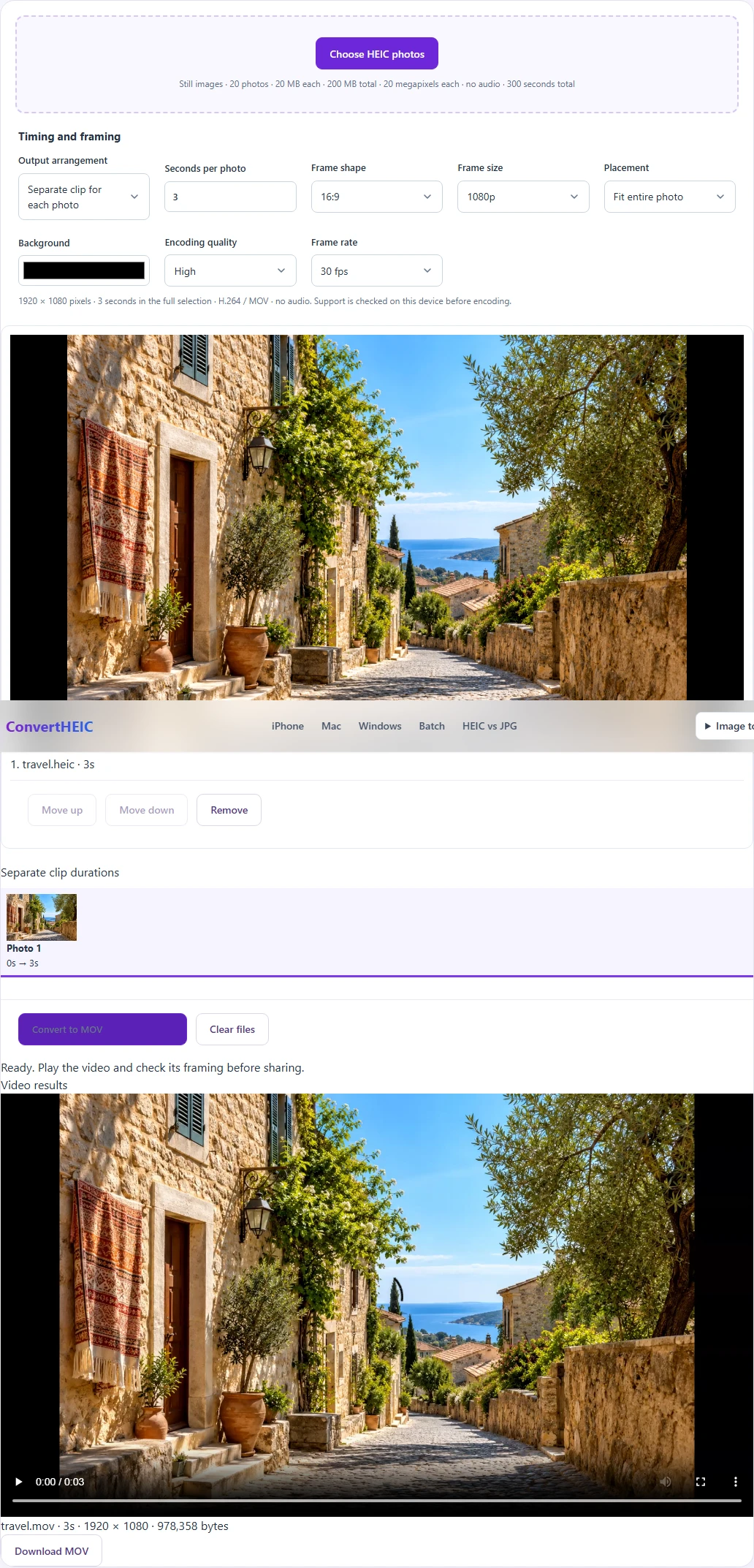
How to convert HEIC to MOV
- Add the photographs. Select static HEIC or HEIF files and confirm that the thumbnails show the intended pictures. The tool checks their contents and reports unsupported or damaged files.
- Choose the delivery mode. Keep each photograph as its own clip, or place several in one joined sequence. In the joined mode, use the move controls to set the order.
- Set timing and framing. Choose a duration, frame shape, frame size, and fit behavior. Check every preview when the photos have different orientations.
- Create the MOV files. Start the conversion and leave the page open while the clips are encoded and finalized. A file is marked complete only after the finished output is checked.
- Inspect the handoff. Download a result, open it in the intended application, and verify duration, framing, and playback before sending the full collection.
Separate clips or one finished sequence?
Separate clips are useful when someone else needs to arrange the photographs. Each clip has its own filename and duration, and completed files can be downloaded together in a ZIP. The archive is only a delivery package; extract it before importing the MOV files into software that expects individual media assets.
A joined sequence is useful when the order and pacing are already decided. It reduces the number of files you need to send, but the recipient receives one rendered video, not your original editing decisions as separate project items. Changing the order later generally means editing the video or rebuilding it from the photographs.
Choose names that make the handoff understandable. If several sources share a name, this converter gives their downloads distinct names rather than overwriting one with another. The original source photographs should travel separately when the recipient may need to reframe or re-export them.
MOV does not automatically mean higher quality
The video codec and encoding settings determine how the picture is represented inside the file. This converter uses H.264 video in a genuine QuickTime MOV container. It does not claim that the container alone makes the picture sharper than an equivalent MP4 encoding.
A high quality setting can limit visible compression changes, but the video remains a newly encoded copy. It is not a lossless camera original, a ProRes master, or a transparent overlay. The page creates standard-color video and does not promise preservation of a HEIC photo’s HDR behavior, depth data, or photographic metadata.
Keep the original HEIC when you need photographic editing flexibility. If your project depends on a managed color pipeline, examine a trial export in that pipeline rather than relying only on the browser preview.
When the missing file is the Live Photo video
If a photograph used to move in your photo library but now appears as a lone HEIC file, a HEIC to MOV conversion is not a way to recover its missing recording. It creates a new held-image video from the still that is available.
Return to the complete Live Photo if you still have it. Apple’s Save as Video instructions explain how to export its video from Photos. If you already have the corresponding MOV file, inspect that original before creating anything new. A genuine recording and a generated photo clip serve different purposes, even when both use .mov filenames.
HEIC to MOV questions
Can I just rename a HEIC file to MOV?
No. A still-image file does not become a timed video because its extension changes. This tool renders video frames, encodes them, and writes a MOV container. Renaming skips those steps and can leave a file that the receiving application cannot use.
Does the MOV have sound?
No. The source is a still photograph, so the output contains no audio track. Add authorized music or narration in your editor if required. There is no microphone sound hidden in an ordinary still that this tool can extract.
Why can I not play the result in this browser?
Browser playback support for a MOV container can differ from support in a desktop player or editor. When inline playback is unavailable, use the frame information and download the file for checking in the destination application. An unsupported browser preview is not automatically evidence of a damaged file.
What happens if my device cannot encode the clip?
The tool reports the limitation and does not silently send the photos to a server. Try a smaller frame or a less demanding batch on a supported device. Download any completed separate clips before closing the page.
Can I change the photo after downloading?
You can edit the new video in an editor, but it no longer contains the original photo as an independently adjustable source asset. For a different crop, hold time, or sequence, return to the HEIC originals and create another output. Keep those originals with your project materials.