Convert PDF to HEIC when you need document pages as individual image files. Select the pages, choose the rendering detail, and preview the result before downloading. One selected page becomes one HEIC image; several results can be downloaded together in a ZIP.
The conversion runs on your device. Your original PDF is not changed, and the tool does not send its pages to a conversion server. Before you start, remember that HEIC output is a picture of a page—not an editable document with its original text, links, or form fields.
Choose PDF
Open one document, then choose the pages to convert. File, page, and processing limits are shown in the tool.
What a PDF to HEIC conversion produces
A PDF can describe text, vector shapes, photographs, and a page layout. This converter renders the visible page into pixels and encodes that image as HEIC. A five-page selection therefore produces five separate pictures, not one HEIC document with five browsable PDF pages.
That can be useful when an application accepts HEIC images but not PDFs, or when you want a page snapshot in an image-based collection. It is less suitable when the recipient needs to copy text, follow links, search the original text layer, or fill in a form. Keep the PDF for those tasks.
PDF to HEIC is also different from extracting photographs embedded in a PDF. Rendering includes the page around a photograph—its captions, margins, and other visible content. If you need the original embedded image file, a dedicated extraction tool is the more appropriate choice.
Select only the pages you need
After the document opens, use the page thumbnails to inspect its contents. You can choose all pages within the displayed processing limit or select specific pages. The page-range field is convenient for a longer document: enter a single page, a range, or a combination such as 1,3-5.
The output follows the document’s page order. Page numbers remain in the filenames, so a download from pages 2 and 9 is not ambiguously renamed “image 1” and “image 2.” This is particularly helpful when you are sharing selected instructions while keeping the complete document elsewhere.
Check the actual thumbnails rather than relying only on printed numbers inside the document. A cover or introductory section can make the PDF's physical page 5 different from a page labelled “5” in its footer.
How to convert PDF to HEIC
Open your document
Select Choose PDF and wait for the page information to load. If the document requires a password, enter the password you are authorized to use. The password is used locally for this session. A password error is not a signal to rename the file or try a different extension.
Choose pages and rendering detail
Select the pages you want, then choose a detail setting. Review the estimated pixel dimensions before starting. A large drawing at high detail can require much more memory than an ordinary text page, even when both came from small PDF files.
Set HEIC quality and convert
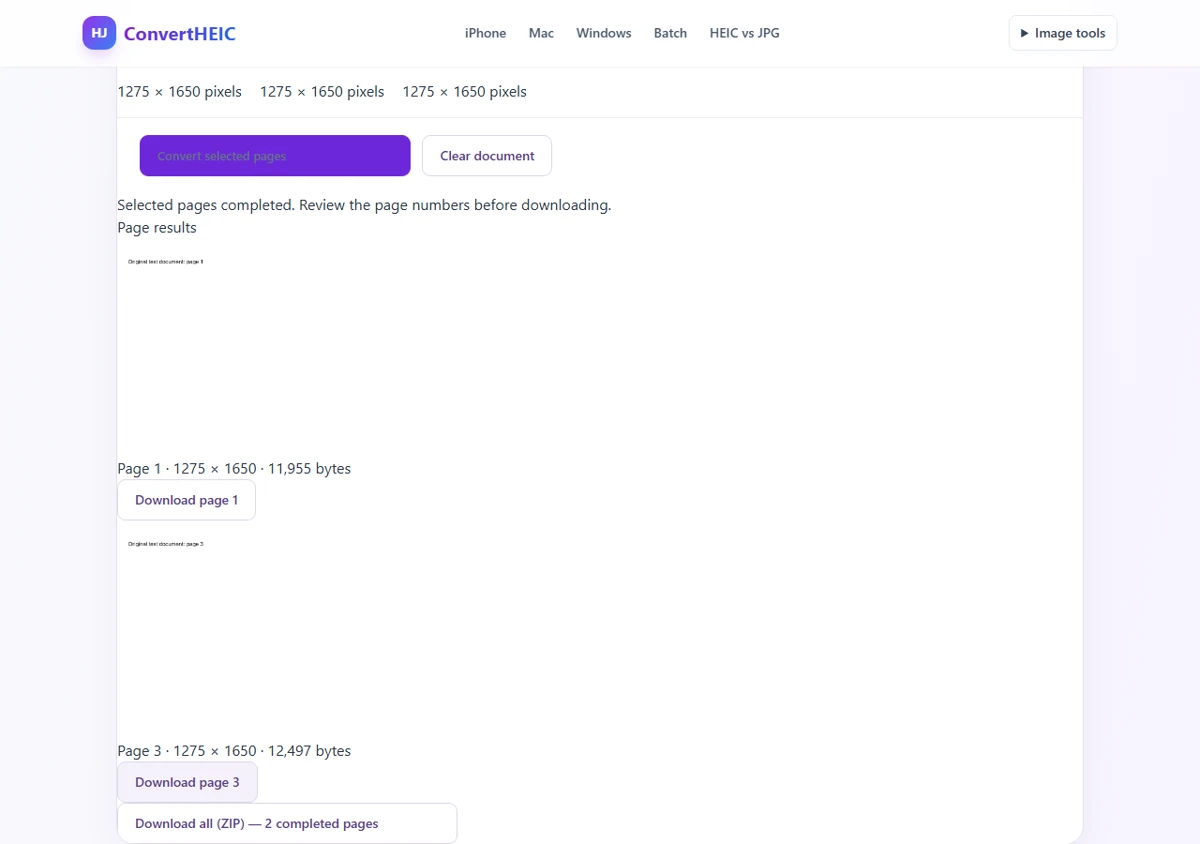
Start with the default encoding quality. Choose Convert selected pages and follow the page-by-page progress. Rendering creates each page image; encoding writes that image into a new HEIC file. The tool checks the output before marking a page ready.
Review and download
Look at the result preview, including small text, thin lines, and any filled form content. Download individual pages or choose Download all (ZIP) for the completed selection. If one page fails, the result list identifies it; a package containing only completed pages should not be mistaken for a complete export.
Rendering detail and HEIC quality are different controls
Rendering detail determines how many pixels describe the page. HEIC quality determines how those pixels are compressed afterward. Increasing one does not undo a poor choice in the other.
| Situation | A useful starting point | What to examine |
|---|---|---|
| Quick on-screen reference | Lower rendering detail | Whether ordinary text remains readable |
| General page snapshot | Default rendering detail | Small labels, line art, and page edges |
| Dense instructions or a detailed diagram | Higher rendering detail | Fine lettering at the intended viewing size |
| A scan that was already blurry | Keep expectations realistic | More output pixels do not restore missing detail |
| A device struggling with a large page | Fewer pages or lower detail | Memory use and whether the result is still suitable |
Try one representative page before exporting a long selection. If a line of text is too small, increase rendering detail. If it has enough pixels but shows compression artifacts, try higher HEIC quality. For important documents, compare against the original PDF in the viewer you normally use.
Keep the PDF when document features matter
The output is useful precisely because it is a normal image file. The same change also removes document behavior. A visible link can still look like a link, but clicking its image does not carry the PDF hyperlink with it.
| Feature in the PDF | What the HEIC image contains |
|---|---|
| Visible text and graphics | Their rendered appearance as pixels |
| Selectable text layer | No original selectable PDF text layer |
| Hyperlinks and navigation | The visible marks, not interactive destinations |
| Form fields | Rendered visible values, not editable controls |
| Document structure and bookmarks | No equivalent PDF navigation structure |
| Several pages | A separate image for each selected page |
Keep the source document if you need to revise it, preserve its original structure, or demonstrate exactly what was supplied. A page image is a derived copy. It should not replace the original in a workflow that depends on document authenticity or editability.
Understanding size, color, and backgrounds
PDF to HEIC does not guarantee a smaller result than the source PDF. A text-only PDF may be very compact because it describes letters rather than storing a large picture of every page. Rendering that page can create a much larger image, particularly at a high detail setting.
The exported pages use a white background and standard-color image output. This is a practical page-snapshot workflow, not a promise to preserve every print-production property, spot color, transparency effect, or archival metadata field. Use the previews to check the rendered appearance, and retain the PDF for specialized printing or preservation work.
No OCR is performed during this conversion. The tool does not recreate editable text from a scanned page or improve a low-quality scan. If the original lettering is unclear, locating a better source document can be more effective than choosing the highest output settings.
PDF to HEIC questions
Can I save one page rather than the entire PDF?
Yes. Select that page in the thumbnail list or enter its page number. Review the selected-page count before converting. The downloaded name includes the original page number so you can relate the image back to the source.
Why do multiple pages download as a ZIP?
A ZIP keeps the separate HEIC images together. It does not merge them into one photograph or preserve PDF navigation. Extract the archive before importing the images into an application that does not open ZIP files directly.
Can I convert a password-protected PDF?
If the tool can open the document with your authorized password, you can select its pages. Unsupported protection or document errors are shown explicitly. The converter does not bypass a password or recover one for you; request an accessible copy from the document owner when necessary.
Why does conversion stop on my device?
Large pages, complex content, and high rendering detail can exceed the available processing budget. Try a smaller selection or lower detail. Completed downloads remain available. If HEIC encoding is unavailable, the tool reports that limitation rather than uploading your document elsewhere.
Is this the right tool for combining iPhone photos into a PDF?
No. That is the opposite direction. Use HEIC to PDF to prepare a document from pictures. Use this PDF to HEIC converter when you already have a PDF and specifically need its pages as HEIC images.