Convert PNG to HEIC for a destination that specifically accepts HEIC images. Choose an encoding quality, set the background for transparent areas, and inspect the new file before downloading. The PNG originals are not changed.
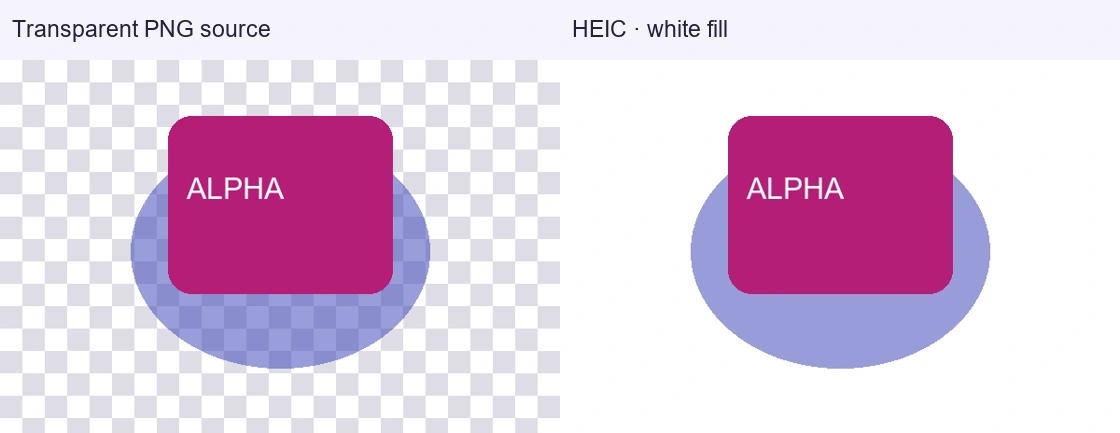
This PNG to HEIC converter produces an opaque HEIC image. Transparent and partly transparent pixels are combined with your chosen background color. If you need to keep an editable transparent graphic, keep the PNG rather than replacing it with this output.
Choose PNG files
Static PNG images only. Files are processed on this device, with supported limits shown next to the picker.
Choose the background before you convert
A logo can look correct on a white page and very different against a dark one. That difference matters when the source contains transparent edges, soft shadows, or antialiased lettering. Once those pixels are combined with a background, the result no longer has the same transparency as the original.
Use the background control to preview the fill before starting your PNG to HEIC conversion. White is a practical choice for document-style images. A darker color may suit artwork designed for a dark layout. For a required brand color, enter its exact hexadecimal value rather than trying to match it by eye.
The control fills transparent areas only. It does not identify a subject, erase a wall, or replace an existing photographic background. A solid white rectangle already present in your PNG stays part of the picture. Background removal is a different operation from choosing how transparency is flattened.
Should this image stay PNG?
HEIC can be useful for a photo-oriented workflow, but it is not an automatic upgrade for every PNG. Screenshots, diagrams, and logos have different requirements from photographs. Decide what matters before choosing a format.
| Your image or requirement | Recommended approach | What to check |
|---|---|---|
| Photograph saved as a large PNG | Try PNG to HEIC and compare | Detail, color, and actual file size |
| Logo needed on several backgrounds | Keep the transparent PNG master | HEIC output here uses one fixed background |
| Screenshot containing small text | Test at full size first | Fine lettering and colored edges |
| Pixel art or exact pixel comparison | Keep PNG when exact pixels matter | This tool uses lossy HEIC encoding |
| A system explicitly requests HEIC | Create a HEIC working copy | Whether that system opens the output |
| Animated PNG | Use an animation-capable workflow | This converter accepts still images only |
Convert PNG to HEIC in four steps
Select the PNG images
Use Choose PNG files or drag pictures into the tool. Check the previews and filenames before continuing. If you are working from an archive, the supported PNG files are added to the same queue within the displayed limits. An archive is not a way around file or memory limits.
Set the background and dimensions
Look for transparent areas in the source preview, then choose their fill color. Leave the size limits empty to retain the original dimensions. Enter a maximum width or height only when you want a smaller image. The converter keeps the proportions rather than stretching a logo or squeezing a screenshot.
Adjust quality if needed
The default is a starting point, not a promise that every image will have the right balance. Use a higher quality setting when small details matter. Try a lower setting if you are making a compact viewing copy and can accept a visible change. The value does not mean that a specific percentage of the original information is retained.
Convert, review, and download
Select Convert PNG to HEIC. The result shows the actual output size and dimensions. Inspect the decoded HEIC preview, especially its edges and small text, then download it. Completed files can be collected in a ZIP with distinct filenames. Keep the source PNG alongside the new copy until you have checked the destination application.
Small text deserves a closer look
A screenshot often contains shapes that make compression changes easy to notice: one-pixel borders, bright text on a dark panel, colored icons, and repeated fine lines. Judge these at the same zoom level in the original and output. A thumbnail is useful for checking composition, but not for proving that fine lettering survived unchanged.
If the text looks soft, first check whether you reduced the dimensions. Increasing compression quality cannot restore pixels removed by resizing. Retry from the original at full dimensions, then compare a higher quality setting. If exact readability or pixel matching is essential, keeping PNG may be the better outcome.
Do not judge a PNG to HEIC conversion only by the number of kilobytes saved. A smaller file that no longer works for its intended use is not a useful result. Conversely, a larger HEIC output can still be valid when the goal is satisfying an application's format requirement rather than saving space.
What happens to colors and image information
This converter creates a standard-color, opaque working image. It does not promise preservation of a high-bit-depth PNG, extended dynamic range, the original color profile, or embedded textual metadata. If your image is a master for color-critical production, retain that master and check the conversion in your actual workflow.
Original embedded metadata is not copied to the HEIC result. That does not erase information visibly included in the picture. A screenshot can still show account names, messages, or location details even when it contains no embedded metadata. Inspect the visible content before sharing it.
PNG to HEIC also does not add the special information associated with some camera captures. The new file is not a ProRAW photograph, a depth-enabled portrait, or a Live Photo simply because its extension is .heic. It is a newly encoded still image based on the pixels you supplied.
A local workflow, with a clear failure state
The selected image bytes stay in this browser session for conversion. Application code still needs to load, and the device still needs enough memory to decode, composite, and encode your files. Keeping the work local does not make large images effortless for a low-memory phone.
The tool checks encoding support before producing downloads. If the required encoder cannot run, it displays an error; it does not upload the PNG elsewhere or rename another format as HEIC. For a failed batch, reduce the number of files and retry a single image. Download completed results before closing the page.
PNG to HEIC questions
Does HEIC support transparency?
The format can support transparency, but support in a format does not mean every converter preserves it. This PNG to HEIC tool deliberately combines transparency with the background you select. Use the source PNG when you need transparent output or an asset that can be placed on several backgrounds.
Is PNG to HEIC lossless?
Not in this tool. PNG can preserve the source pixels without lossy compression, while this conversion uses adjustable lossy HEIC encoding. A high setting can look close to the source, but that is not the same as pixel-for-pixel identity. Do not discard a lossless master on the assumption that the new extension improves it.
Why is the HEIC not smaller?
The result depends on image dimensions, content, quality settings, and file overhead. A simple or already efficient PNG may not shrink at the selected settings. Compare the reported sizes and decide whether format compatibility alone is enough reason to keep the HEIC copy.
Can I convert HEIC back to PNG later?
Yes, using HEIC to PNG, but that creates another representation of the converted image. It does not recover transparency that was filled or detail removed during earlier encoding. Keep the original PNG if you might need either again.
What should I use for ordinary photographs saved as JPG?
Use JPG to HEIC. It accepts JPG and JPEG together and explains the trade-offs for already compressed photographs. Select the converter that matches your actual input rather than changing its filename extension.