See what is inside a HEIC photo before deciding whether to convert it. This HEIC viewer opens supported still images in your browser, with a large preview, zoom controls and a simple file list. You do not need to install a desktop viewer just to check a photograph someone sent you.
Choose your files, wait for the preview to appear, then inspect the picture at a comfortable size. Your original files remain unchanged. If you later need a different format for an attachment or upload form, follow the conversion links after checking the image.
Choose HEIC files
HEIC and HEIF still images. Up to 10 files, 50 MB each and 200 MB in one selection. Photos are processed on this device; very large images may exceed its available memory.
Start with the picture, not a software installation
A filename ending in .heic usually identifies a photograph stored in a HEIF container with HEVC image compression. It is common to receive one from an iPhone even when your own computer does not open that format in its default photo application.
That mismatch does not, by itself, mean the photograph is broken. A browser-based HEIC viewer can decode a supported file and display a preview without changing the program associated with HEIC files on your computer. It is useful for checking an email attachment, choosing the correct picture from a download, or reading a photographed document before deciding what to do next.
This page is for viewing photographs. It does not install a Windows codec, change your camera settings, or make every application on your device understand HEIC.
How to use the HEIC viewer
Choose the actual image file
Select Choose HEIC files, or drag photos onto the file area. If a cloud service has only shown you a placeholder, download the original image to your device first. Selecting a shortcut or a link to an online photo does not provide the image data needed for a preview.
Open a preview and check its details
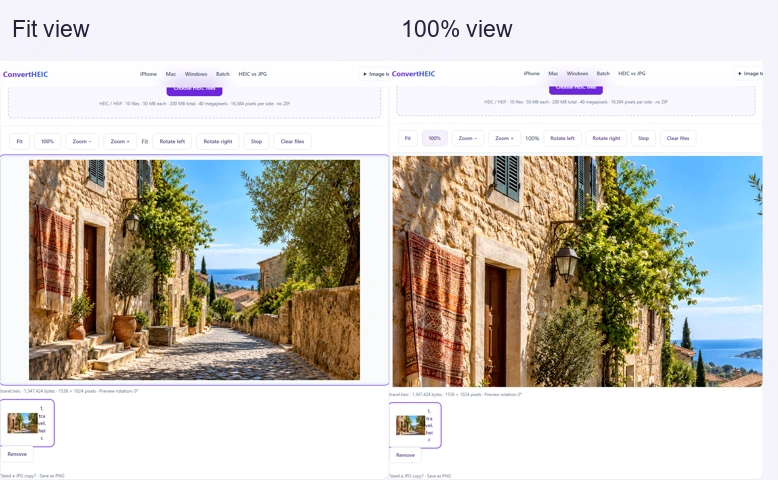
Choose a thumbnail to make that photograph active. The details panel shows its filename, file size and decoded pixel dimensions. Start with Fit to see the whole picture, then switch to 100% when you need to examine small lettering or a sharp edge.
Adjust the view
Use the zoom controls to move closer, and drag the enlarged preview to inspect another area. Rotate left or right if a different viewing angle helps. These controls change the view on this page, not the original file saved on your device.
Keep viewing or choose a next step
Move between photographs in the file list. Remove an individual item when you finish, or clear the selection. If another service rejects HEIC, use our conversion tool to create a more widely accepted copy instead of renaming the extension.
Viewing, converting or fixing your computer: which do you need?
| What you want to do | Best starting point | What changes |
|---|---|---|
| Check the contents of a photo now | This HEIC viewer | Only the on-page preview |
| Send a copy to a service that rejects HEIC | A conversion tool | A new image file is created |
| Open HEIC files by double-clicking them regularly | A compatible desktop application or system extension | Your local viewing setup |
| Understand why a file will not open | Our HEIC opening guide | You identify the cause before choosing a remedy |
These are different jobs. Viewing does not require you to download an extra converted copy, while converting is useful when the receiving application needs a different file type.
Look closely without changing the original
Fit-to-screen previews make large pictures easy to navigate, but they can hide small defects. For a photographed receipt, check individual numbers at 100%. For a portrait, inspect the eyes and hair rather than judging sharpness from a small thumbnail. For a scanned form, make sure none of the page edges were cut off when it was photographed.
Increasing the zoom beyond 100% enlarges the preview; it does not recover missing detail. Rotation is similarly a viewing aid, not a repair to the original photograph. Keep the source file when the picture matters, especially if you plan further editing.
The preview is intended for everyday inspection. It is not a color-proofing workflow and does not promise to reproduce every HDR, wide-gamut or auxiliary-image feature that may be present in a HEIC container.
Using the viewer on a computer or phone
On a computer, drag-and-drop is convenient when the file is already in Downloads or another folder. On a phone, the file picker may offer both a photo library and a file browser. Choose the location containing the actual HEIC file; some sharing workflows provide an already converted image instead.
If you are reviewing several large photographs on a mobile device, start with a small selection. Decoding compressed photos uses more working memory than their file sizes suggest. Closing other demanding tabs or opening fewer pictures can help when a browser runs out of resources.
The HEIC viewer requires a current browser capable of running its decoding code. Support can vary with the file and device, so an unsupported-file message is more useful than a promise that every HEIC will open everywhere.
What stays local, and what does not get saved
Your selected photographs are decoded in the browser. They are not sent to a conversion server for viewing. The website still needs normal network requests to load its page and software, so local photo processing does not mean that the page makes no network connections at all.
The viewer does not turn your selection into a permanent online album. Closing or reloading the page means you may need to choose the files again. Removing a photograph from the viewer does not delete it from Downloads, your photo library or cloud storage.
If the picture contains sensitive information, follow your organization's rules for handling it. A local preview does not remove text, faces or other private details visible inside the photograph.
When a photo will not open
First, check that the download is complete. A zero-byte file or a partially downloaded attachment cannot be decoded. Download the original again if the file size looks unexpectedly small.
Next, check the file type. Changing a filename to end in .heic does not make its contents a HEIC image. This viewer checks file data, not just the extension.
Some containers hold multiple images or an image sequence. This version accepts a single still photo and reports unsupported containers rather than silently dropping their additional images. A Live Photo's motion component also requires a different workflow; viewing its still photograph does not play the associated video.
Finally, try a smaller selection when the browser reports a resource limit. If the same file opens in its original photo application but not here, retain the original and export a compatible copy from that application.
HEIC viewer questions
Is this a HEIC viewer or a converter?
Its main purpose is viewing. The browser decodes the selected photo to display it, but you do not have to save a converted image. Separate conversion links are available when you need a new file for another application.
Will rotating the preview overwrite my photo?
No. Preview rotation changes the display on this page. The original file remains in its original location and is not rewritten by the viewer.
Can I inspect camera settings or GPS coordinates?
This viewer shows basic file information and dimensions, not a complete EXIF report. Do not treat the displayed filename or download date as verified camera metadata.
Can the viewer repair a damaged HEIC file?
No. It can help you see whether a supported file decodes, but it does not reconstruct missing image data. If a transfer was interrupted, obtaining the original again is usually the most useful next step.
Do I need to change HEIC to JPG just to look at it?
Not when the file opens successfully here. Use the HEIC viewer to inspect it first, and convert only when another application or recipient needs a different format.